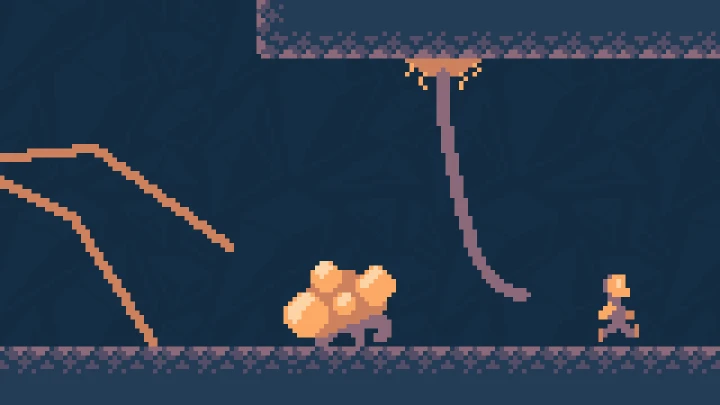
Hey! Kago here. It'll be a while before my next game goes live, so I thought in the meantime I'd share some knowledge that helped us make Fine Detective.
In this post, I'm going to share a download for a palette swap shader just like the one in that game, and explain how to use it in Godot Engine. Then I'll write a step by step tutorial explaining how to code your own palette swap shader.
While this is meant for Godot Engine, the concepts will apply to other engines too.
Note that this is specifically for low res pixel art games. The shaders won't work correctly with most HD artwork.
How are palette swaps useful?
Palette swapping is versatile as hell:
- Prototype sprites and finalize colors later
- Make variants of enemies
- Shift tileset graphics for a day and night cycle
- Character customization
- Do damage flash and other effects by cycling palettes
- Adjust colors project-wide at any time
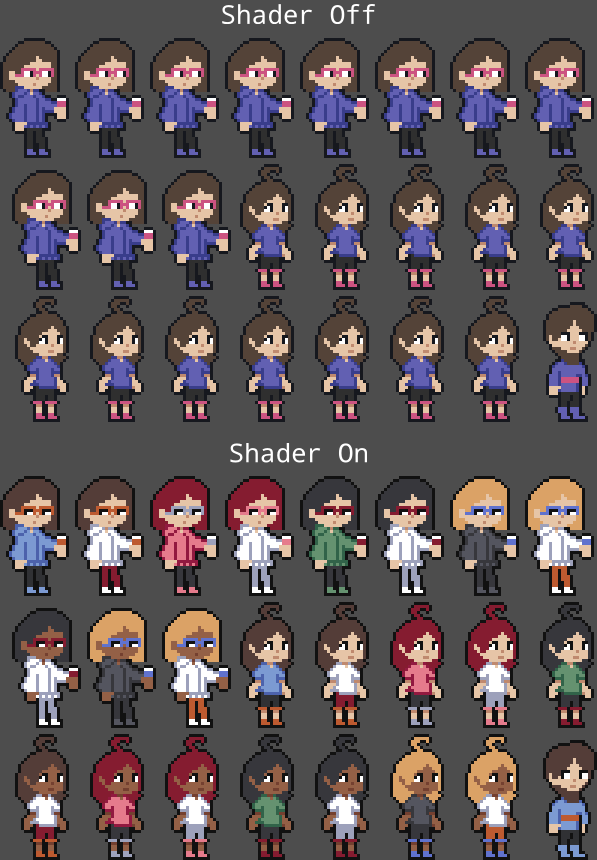
When we made Fine Detective, we wanted large crowds. Duplicate characters would have ruined the game, though. To get the number of characters we needed before the Summer Game Jam 2026 deadline, we just made 6 animation sets and used a bunch of palettes!
Use the right project settings!
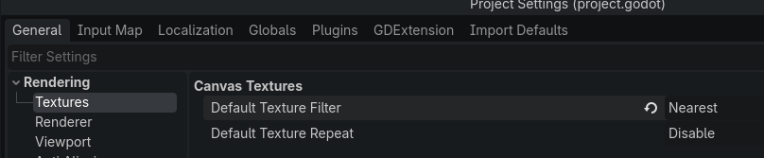
Please remember to use Nearest as the default texture filter, you can find it in Project Settings.
Shader setup
Download here!
Feel free to use it in your projects, commercial or noncommercial.
No attribution necessary.
Extract the folder and move it to your Godot project folder. There's an example scene inside.
(The "A, B, C, D" nodes have the ShaderMaterials - the child Sprite2Ds have use_parent_material enabled.)
To use the shader, set the material property of any CanvasItem (the 2d nodes) to a new ShaderMaterial. Set the ShaderMaterial's shader property to palette.gdshader.
The shader is officially working! But it's not doing anything. Give me a second... no refunds...
Next you need to set the palette_texture, which is how we map the colors we want to swap.
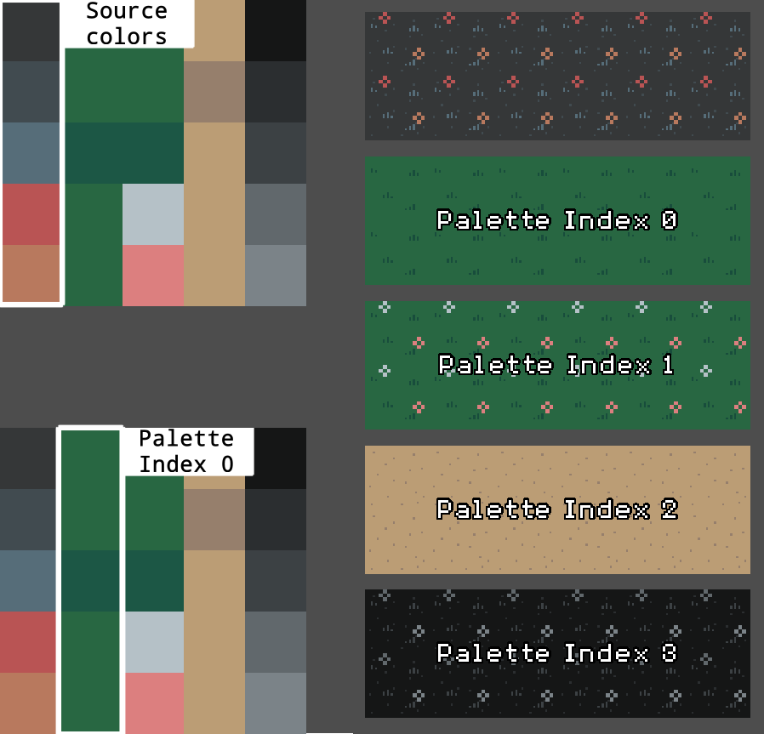
The palette_texture is small, each color is one pixel. It's organized in columns. The first column is for source colors, which are the (exact!) colors from your asset.
The second column is palette index 0, the default palette. Then palette index 1 and so on. These columns decide what color we'll swap to when the source color matches the color from your asset.
Use the palette_index parameter in the ShaderMaterial to switch the palette. -1 disables the shader.
Use palette_flip_v to mirror the colors in all palettes vertically.
Use palette_offset_v to shift the colors of all palettes up or down. This will wrap around. Useful for effects.
How to include this shader in another shader
You'll probably want to swap colors and do other stuff at the same time. The download includes a .gdshaderinc that makes this easy.
In fact, the palette.gdshader is practically empty! It's just there for convenience. It includes the file palette.gdshaderinc which basically means "throw in all the code in this file," effectively combining them. This lets you reuse your shader code.
palette.gdshader:

Including "palette.gdshaderinc" on its own here is a shorthand that uses this file's folder as the starting point. Normally you need to use a full path starting with "res://". Please keep the downloaded shader files in the same folder
To make your own shader that uses this one, just include palette.gdshaderinc (right-click in the editor to copy its path). Then use swap_colors() in your fragment() function.
You can include palette_base.gdshaderinc instead if you don't want the uniforms. You'll need to call _swap_colors() instead, which requires arguments.
Writing your own palette swap shader
Time for the fun part! This section will walk you through writing a basic palette swap shader. The one in the download has some extra features that would complicate this tutorial, so I'll stick to only the essential steps.
The basics
If you're totally new to shaders, keep in mind that this code will run for every pixel. It's one big loop, and in each loop, we have to set COLOR to what we want.
Another thing to know is that a "UV" is like, a ratio, dude. 0.5 means half. So a UV of vec2(0.5, 0.5) would point to the center of the texture.
To get started, open the shader editor (bottom panel) and create a new .gdshader.
Setup
We'll declare the shader_type as canvas_item, since we'll be using this on CanvasItem nodes.
We only need to declare two uniforms:
- sampler2D palette_texture - the texture that maps source colors to palette colors
- int palette_index - an integer that tells the shader which palette to use
We need to add a hint to palette_texture called filter_nearest, which avoids blur when we sample colors from it.
shader_type canvas_item;

uniform sampler2D palette_texture : filter_nearest;
uniform int palette_index = 0;
Add in a fragment() function. This is where we set COLOR to what we want.
shader_type canvas_item;

uniform sampler2D palette_texture : filter_nearest;
uniform int palette_index = 0;

void fragment() {
    // about to raise some hell
}
Getting palette_texture info
Next let's declare some vars. We need to know the size of the texture, and the texture's pixel size (the UV ratio each pixel uses).
Use textureSize() to read the size of the palette_texture as an ivec2 and store it in tex_size.
Then we can find the pixel size by dividing vec2(1.0, 1.0) by vec2(tex_size). We need to put tex_size in a vec2() here because it's an ivec2, and needs to be converted before it can operate with a vec2.
vec2(1.0) will become vec2(1.0, 1.0) automatically.
void fragment() {
    ivec2 tex_size = textureSize(palette_texture, 0);
    vec2 tex_pixel_size = vec2(1.0) / vec2(tex_size);
}
Looping down the source color column
Now we can add our loop, where we'll read the first column of the palette_texture (the source colors) and compare them to the value of COLOR (the pixel color we started with).
We just need to loop so long as an integer is less than the tex_size.y. We'll declare an integer named i.
Don't forget the i += 1, or bad things will happen
void fragment() {
    ivec2 tex_size = textureSize(palette_texture, 0);
    vec2 tex_pixel_size = vec2(1.0) / vec2(tex_size);

    int i = 0;
    while (i < tex_size.y) {
        // do radical shit here
        i += 1;
    }
}
We're now looping for every vertical pixel in the palette_texture.
Sampling the palette_texture
Next we need to figure out the UV for the source color, and the UV for the "swap color," which is the palette color we'll use if the current COLOR matches the source color.
Declare a vec2 named source_uv and set its y component to float(i). Since i increases each loop, we'll walk down the list of source colors. Remember, we need to multiply by tex_pixel_size to convert to the right UV ratios
vec2 source_uv = vec2(0.0, float(i)) * tex_pixel_size;
source_uv += tex_pixel_size * 0.5; // center on the pixel
Declare a vec2 named swap_uv. This will be the same as source_uv, except we need to move its x component based on the palette_index. A palette_index of 0 should use the first palette (the second column in the texture), so we'll add 1 to skip the source color column:
vec2 swap_uv = vec2(float(palette_index + 1), float(i)) * tex_pixel_size;
swap_uv += tex_pixel_size * 0.5; // center on pixel
We're almost there dude. Next just store the RGB values of the palette_texture using both of those SICK variables we just declared
vec3 source_rgb = texture(palette_texture, source_uv).rgb;
vec3 swap_rgb = texture(palette_texture, swap_uv).rgb;
Mixing COLOR.rgb and swap_rgb (or not)
We have all of the ingredients. We're immensely fuckin' powerful and it's time for the penultimate boss fight.
mix() can be used to change one color to another. This is all or nothing, we want a value of 1.0 or 0.0. If we use mix() with 0.0, nothing will happen and the shader will move on.
First use distance() to compare source_rgb and COLOR.rgb, and store it in a variable named dist.
0.0 is a perfect match here.
Declare a float named mix_weight. Use step() - this function returns 1.0 if the second argument is equal to or greater than the first argument. Otherwise, it returns 0.0.
For the first argument of step(), pass a number real close to 1.0 such as 0.99.
For the second argument, pass 1.0 - dist. This flips dist around so that 0.0 would be 1.0, and 1.0 would be 0.0.
Finally, multiply mix_weight by COLOR.a to preserve the transparency of the color we started with.
float dist = distance(source_rgb, COLOR.rgb);
float mix_weight = step(0.99, 1.0 - dist);
mix_weight *= COLOR.a; // keep transparent pixels transparent
Final boss
Good job dude. You just need one more line of code to finish this loop AND this shader.
This one does the mix(), and either sets COLOR to the swap color, or does nothing.
COLOR.rgb = mix(COLOR.rgb, swap_rgb, mix_weight);
Here's your brand new shader in action!
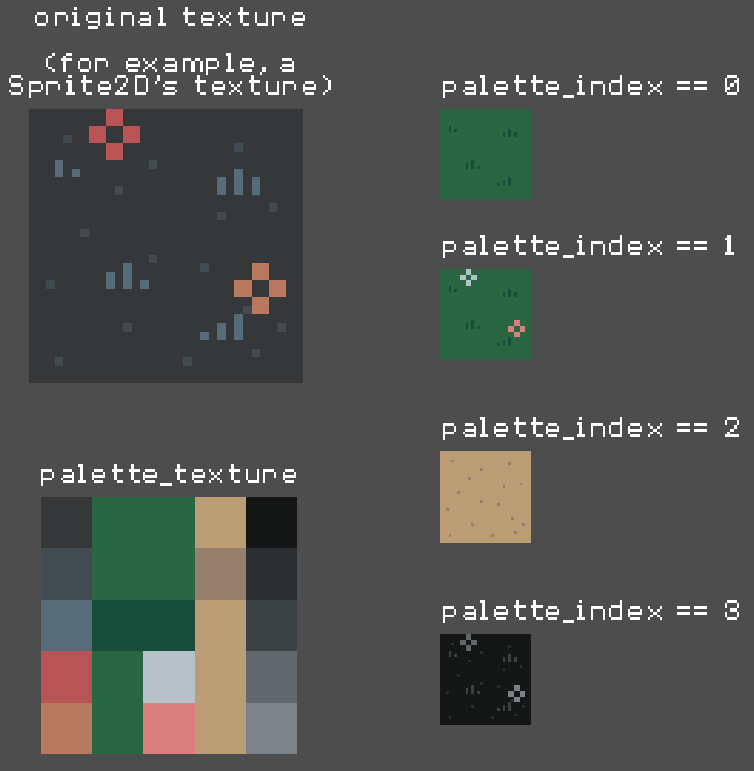
And here's the full shader code.
If you're just going to copy and paste this part... I recommend using the shader I linked to earlier in the post instead, which has a few more features.
shader_type canvas_item;

uniform sampler2D palette_texture : filter_nearest;
uniform int palette_index = 0;

void fragment() {
    ivec2 tex_size = textureSize(palette_texture, 0);
    vec2 tex_pixel_size = vec2(1.0) / vec2(tex_size);

    int i = 0;
    while (i < tex_size.y) {

        vec2 source_uv = vec2(0.0, float(i)) * tex_pixel_size;
        source_uv += tex_pixel_size * 0.5; // center on the pixel

        vec2 swap_uv = vec2(float(palette_index + 1), float(i)) * tex_pixel_size;
        swap_uv += tex_pixel_size * 0.5; // center on pixel

        vec3 source_rgb = texture(palette_texture, source_uv).rgb;
        vec3 swap_rgb = texture(palette_texture, swap_uv).rgb;

        float dist = distance(source_rgb, COLOR.rgb);
        float mix_weight = step(0.99, 1.0 - dist);
        mix_weight *= COLOR.a; // keep transparent pixels transparent

        COLOR.rgb = mix(COLOR.rgb, swap_rgb, mix_weight);

        i += 1;
    }
}
Closing thoughts
This is one of those things I learned years ago and have carried around on my "toolbelt." When we were rushing to make Fine Detective, it proved immensely useful. I'm sure that palette swapping would be useful in many of your projects too, and if this helps you do it, I'll be happy.
If you have any trouble using the shader, or questions about writing one from scratch, please feel free to send me a PM. I'll respond as soon as I can.
That's it for now!